
How to load money
Fund your transfer in whichever way is easiest — load in the app from your bank, pay in cash, by JP Post furikomi, or with a card at Lawson.
- 01
Load Money in the app
Japan Money Express has launched an exciting new feature, enabling you to instantly transfer JPY from your bank account to your JME Wallet. This seamless integration, available directly through the “Load Money” section of the JME Wallet app, makes it easy to deposit funds whenever you need.
The service is powered by Bankey Inc. (Japan) and supports real-time transfers. To use this feature, simply register with the internet banking service of your bank and start transferring money directly to your JME Wallet. This feature is compatible with all banks across Japan, including major institutions like Mizuho Bank, Japan Post (Yucho) Bank, MUFG Bank, and SMBC.
Get the appExample — loading from a Mizuho Bank account:
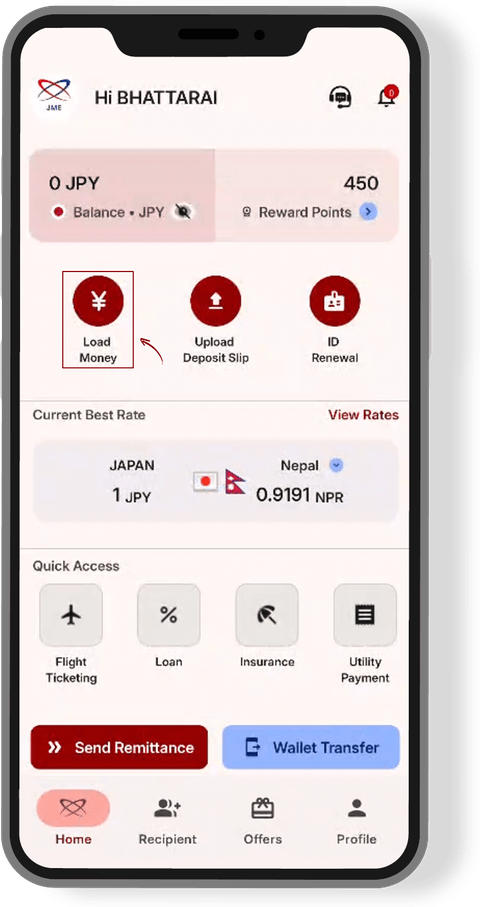
Step 1: Tap “Load Money”
From the JME Wallet home screen, tap “Load Money.” This starts the process of adding Japanese yen (JPY) from your bank account to your JME Wallet.
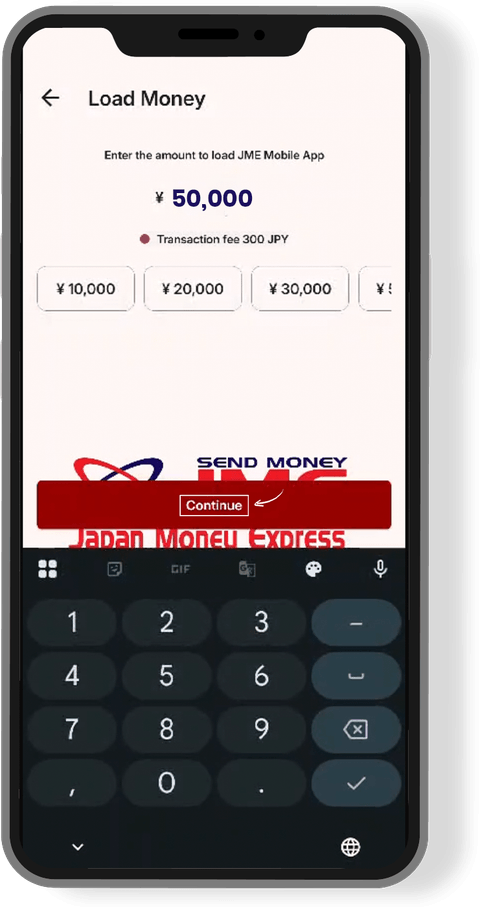
Step 2: Enter the amount
Enter the amount of money you want to load into your JME Wallet, then tap “Continue.”
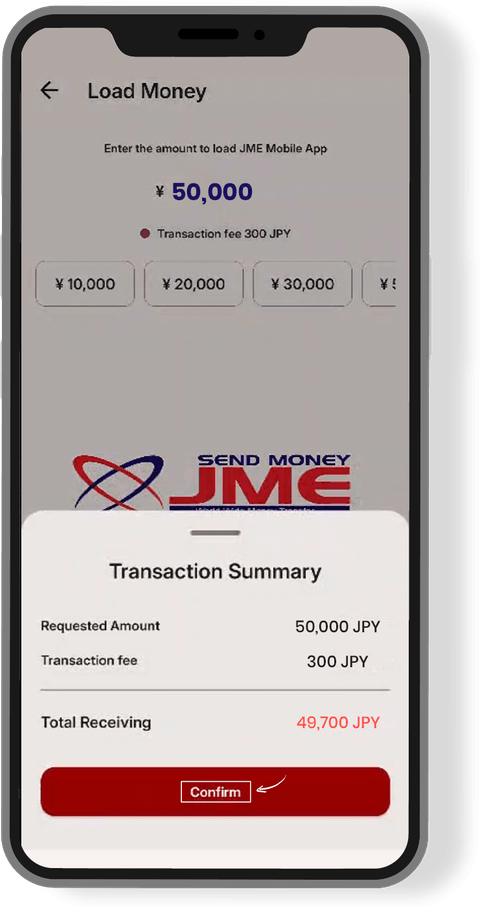
Step 3: Confirm the transaction
The app displays a transaction summary. Check the details and, if everything is correct, tap “Confirm.”
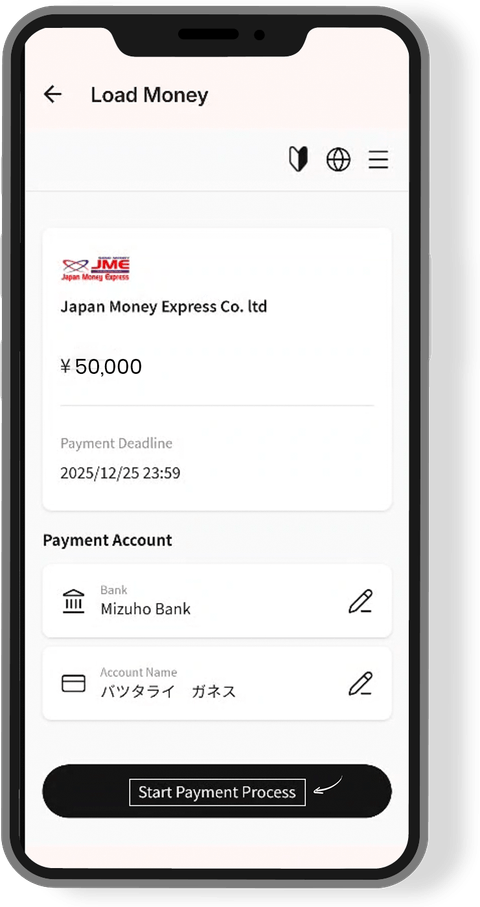
Step 4: Review payment details
You are shown the payment information and Mizuho Bank account information. Review these details before continuing.
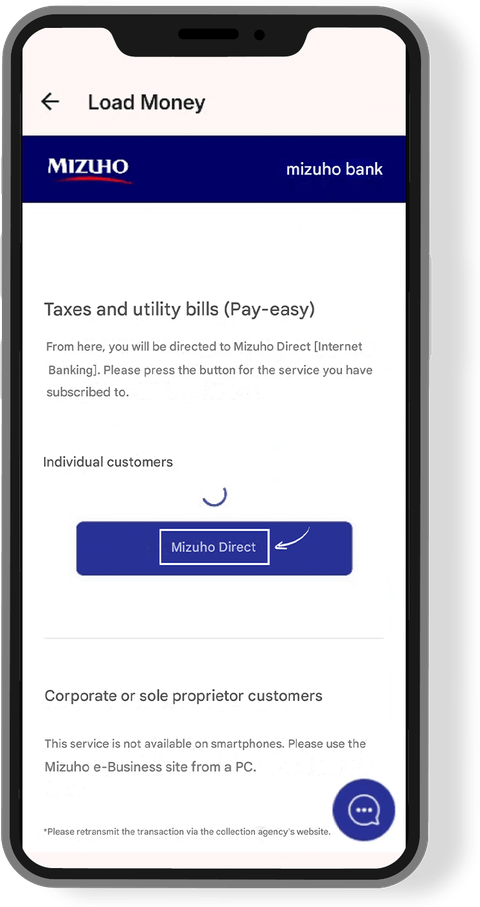
Step 5: Open Mizuho Direct
Tap the option provided to access Mizuho Direct, which is used to manage and authorize the bank payment.
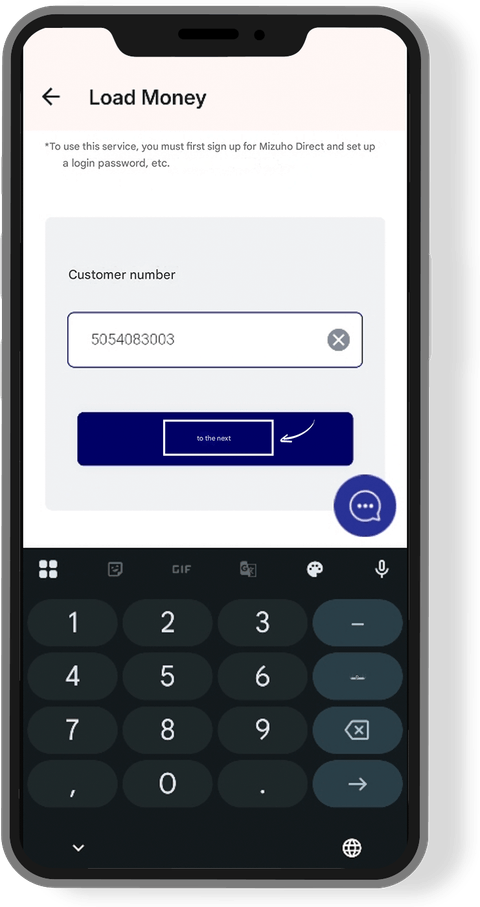
Step 6: Enter your customer number
Enter your Mizuho Direct customer number. If you haven't registered for Mizuho Direct, you need to register for the service first.
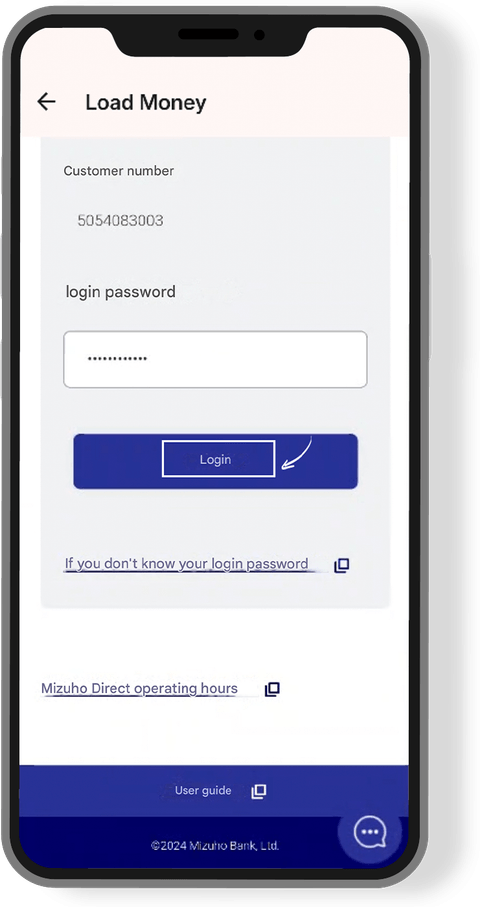
Step 7: Log in
Enter your customer number and login password to access Mizuho Direct and continue the transaction.
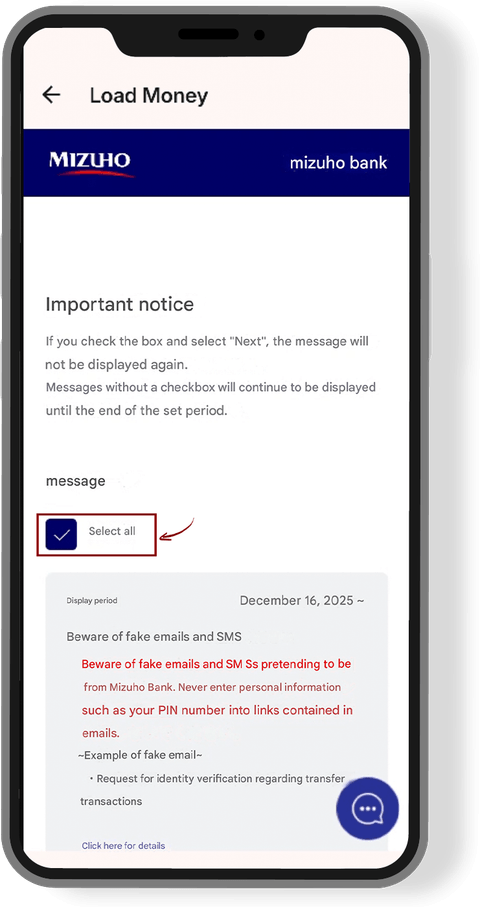
Step 8: Acknowledge the important message
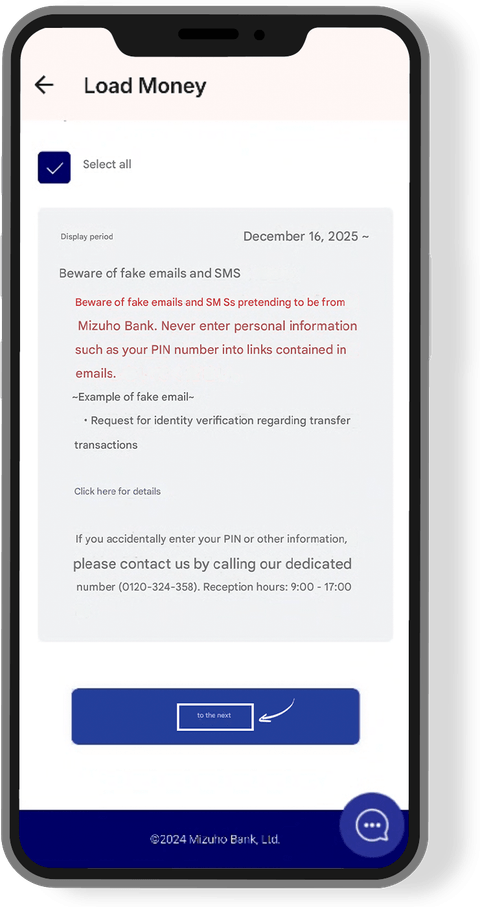
Read the important notice displayed by Mizuho. Check the required box and select “Select all” to proceed.
Step 9: Check payment and withdrawal account
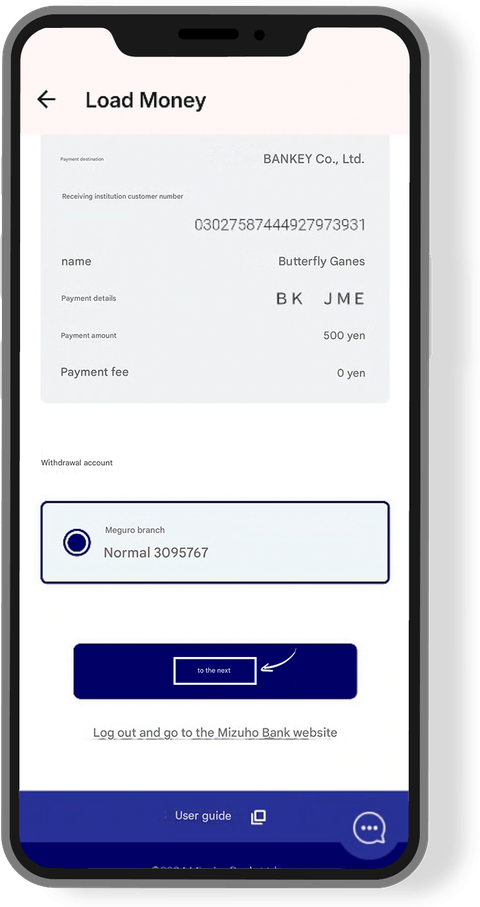
Verify the payment amount/details and the bank account from which the money will be withdrawn. If everything is correct, tap “Next.”
Step 10: Enter the second PIN
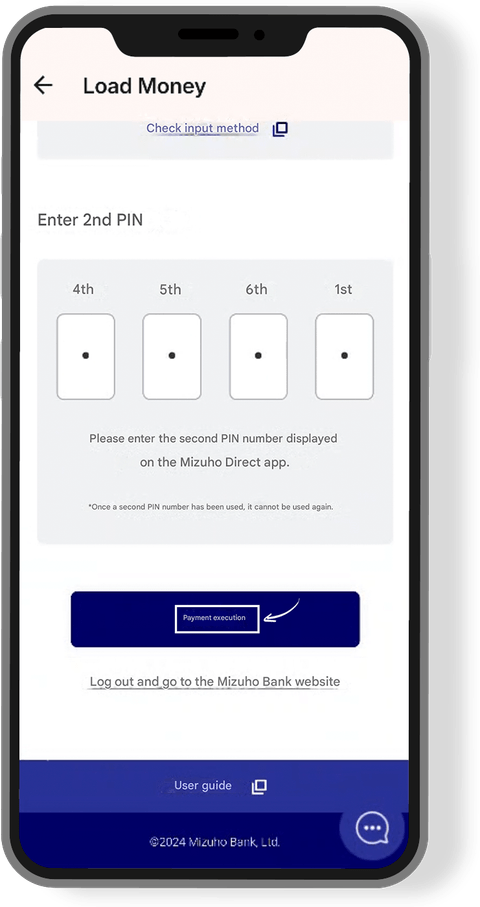
Enter the second PIN displayed in the Mizuho Direct app, then tap “Payment Execution.” This authorizes the bank deposit.
Step 11: Security warning
JME provides a warning to be careful about fraudulent emails or SMS messages pretending to be from Mizuho Bank. Do not enter your PIN or personal information through suspicious or unknown links.
Step 12: Money successfully loaded
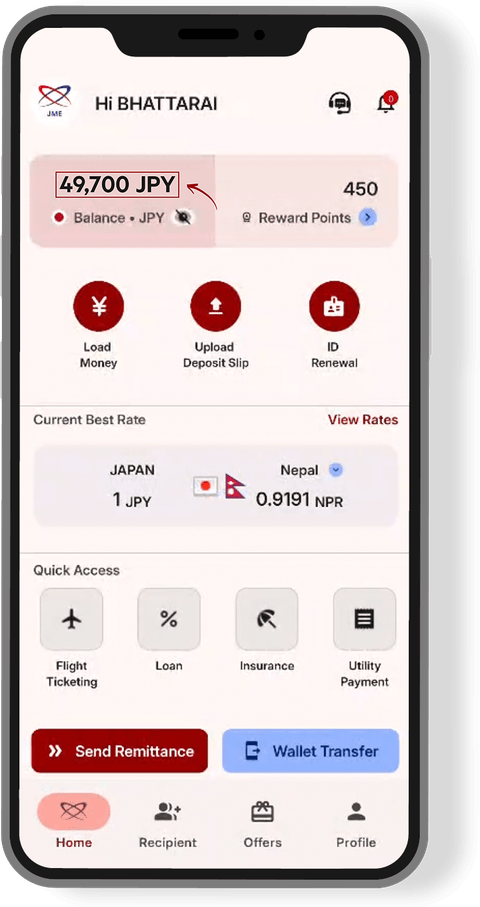
After the payment is completed, the JME Wallet shows that the money has been successfully loaded.
- 02
Cash payment
Pay in cash at a JME counter or partner agent — hand over the amount and your transfer is funded on the spot.
Find a counter or agent - 03
JP Post furikomi
JP Post Furikomi is a convenient way to deposit money for your JME transfer using a Japan Post Bank (Yucho Bank) ATM. You can transfer money directly from your JP Post Bank account to your JME app and use it for your international remittance.
It is a simple and convenient option for customers who have a JP Post Bank passbook or cash card. Your transfer is funded once we receive the deposit.
JP Post Bank (ゆうちょ銀行)
- Yucho account
- 10110-95388741
From another bank (他銀行からのお振込み)
- Branch
- 〇一八 店 (018 / ゼロイチハチ店)
- Account type
- 普通 (Ordinary)
- Account number
- 9538874
- Recipient name
- ジャパンマネーエクスプレス(カ
Always include your JME customer details with the transfer so we can match your deposit. Contact us if you need help.
You can also deposit into the account at a Japan Post Bank ATM (available at Lawson). Each screen below is what you will see, with the button to press marked:
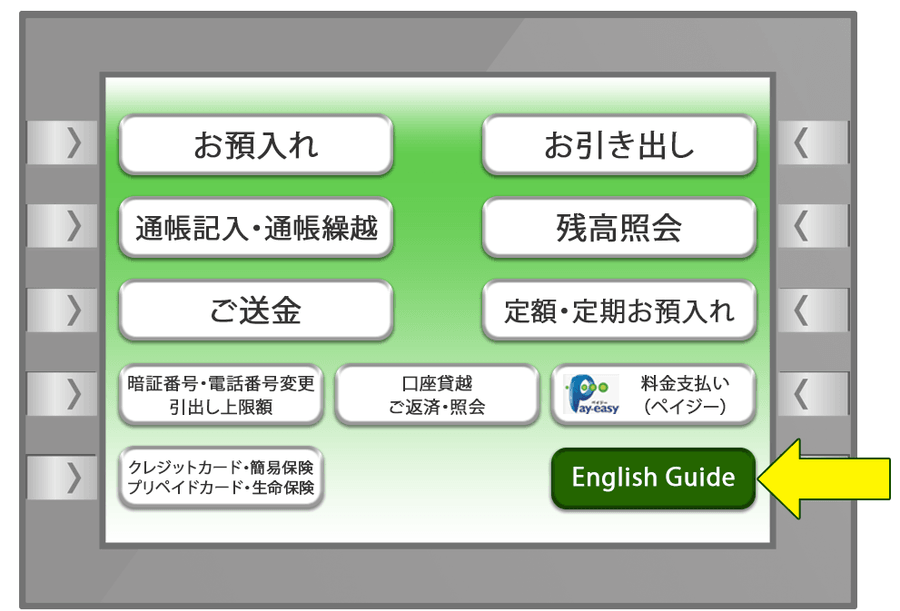
Step 1: Select “English Guide”
Choose the English language option on the ATM screen.
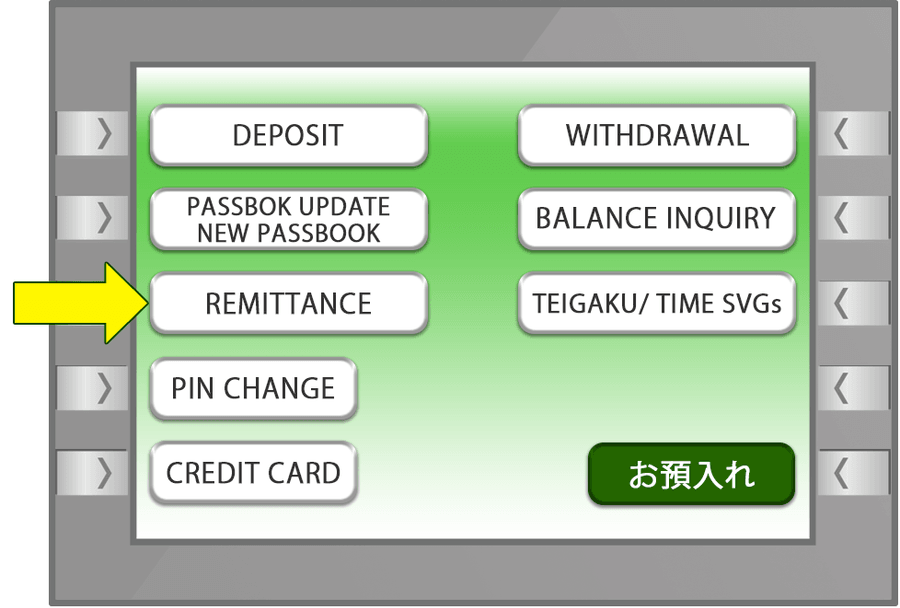
Step 2: Select “Remittance”
Choose the remittance option.
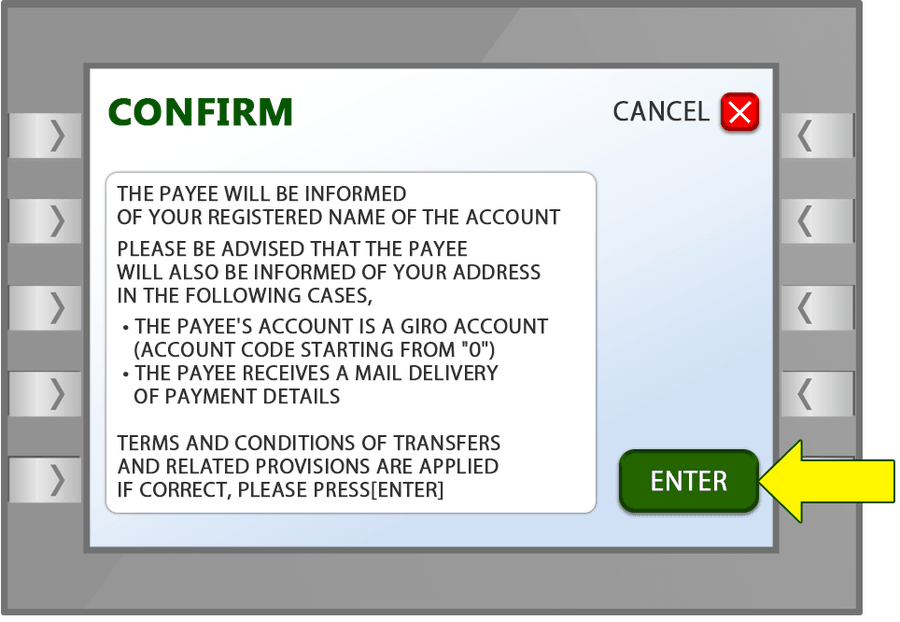
Step 3: Select “Enter”
Continue to the next step.
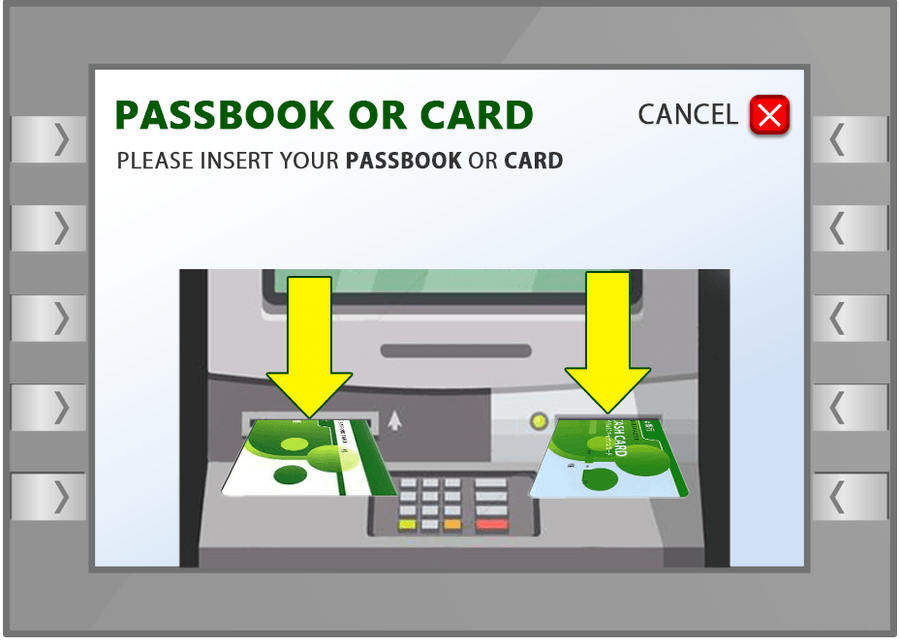
Step 4: Insert your Passbook or Card
Insert your JP Post Bank passbook or cash card into the ATM.
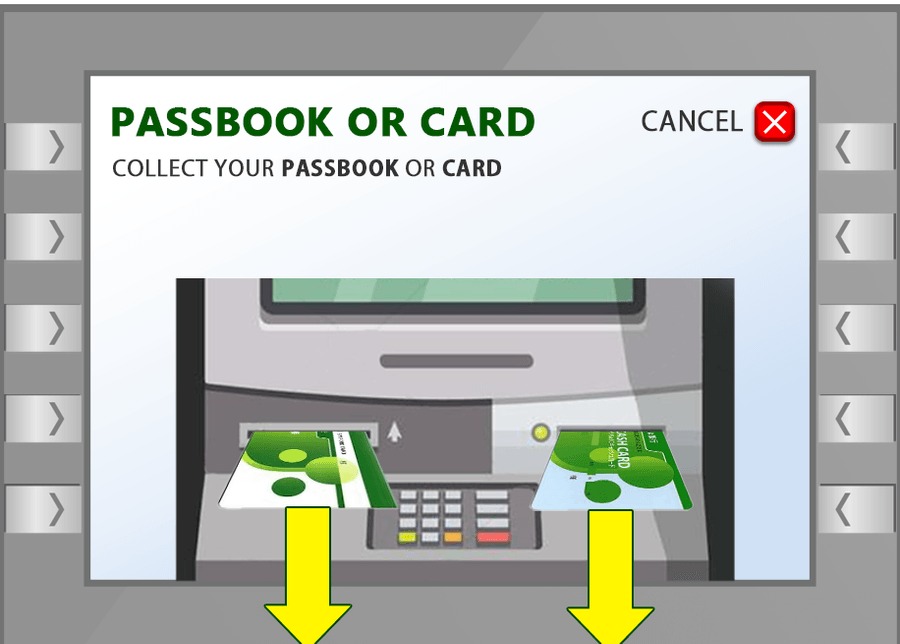
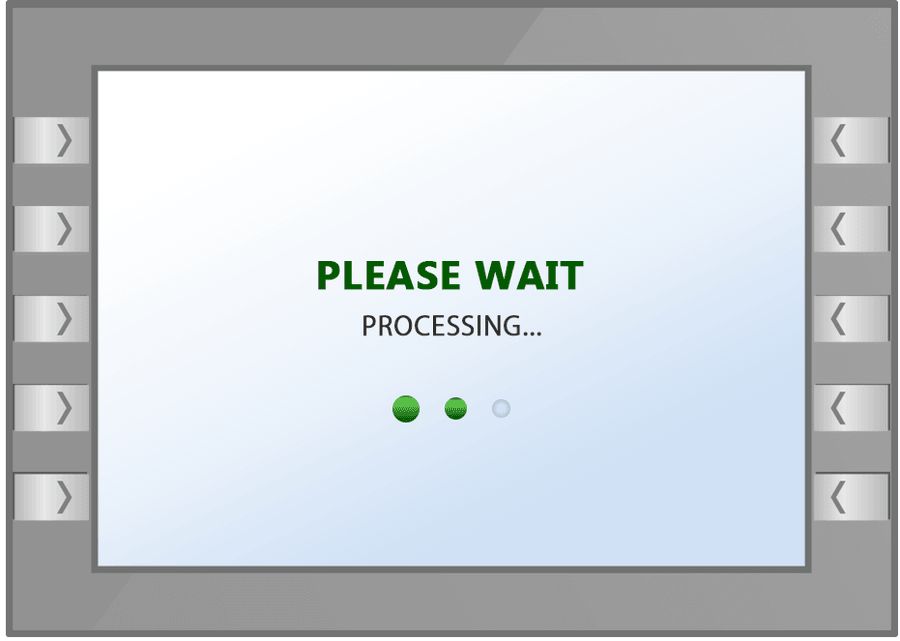
Step 5: Wait for the next screen
The ATM will process your card or passbook.
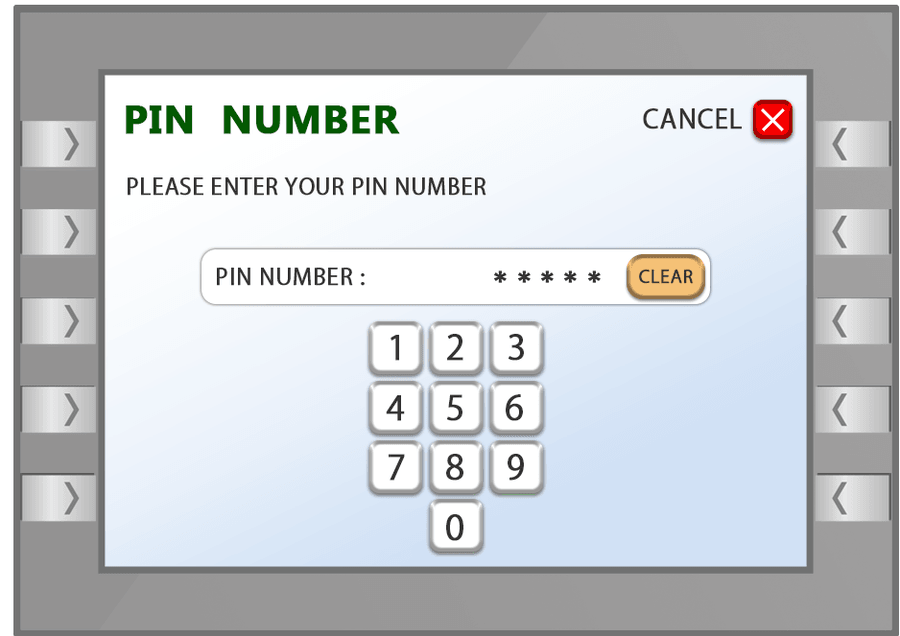
Step 6: Enter your PIN
Enter your JP Post Bank PIN.
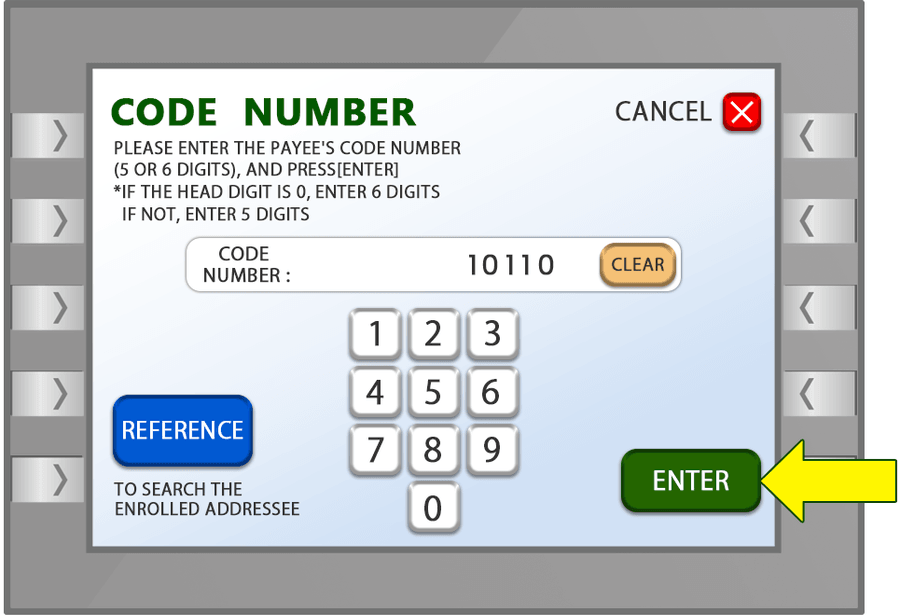
Step 7: Enter the Code Number
Enter 10110 and press “Enter.”
Step 8: Enter the Account Number
Enter 95388741 and press “Enter.”
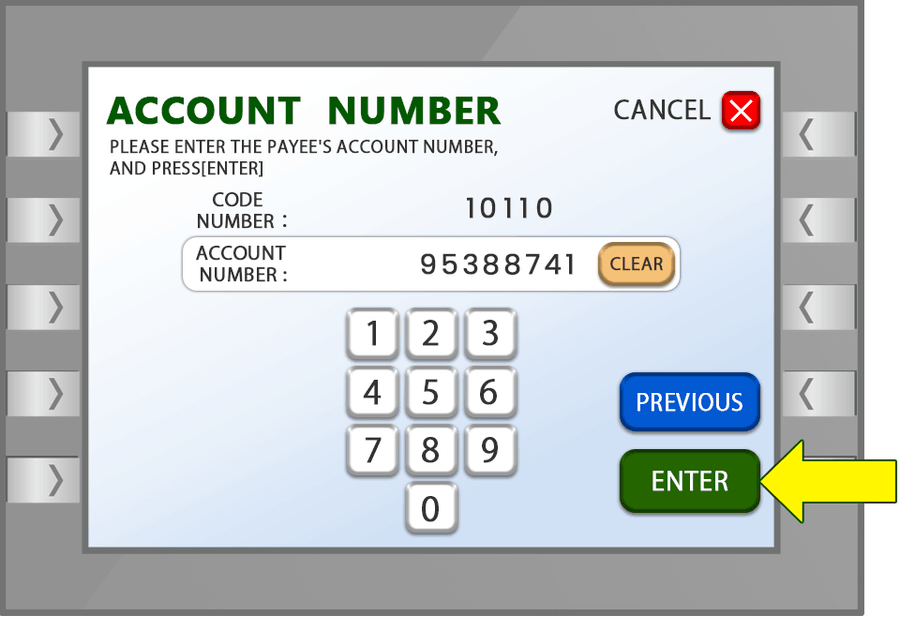
Step 9: Enter the Amount
Enter the amount you wish to deposit and press “YEN.”
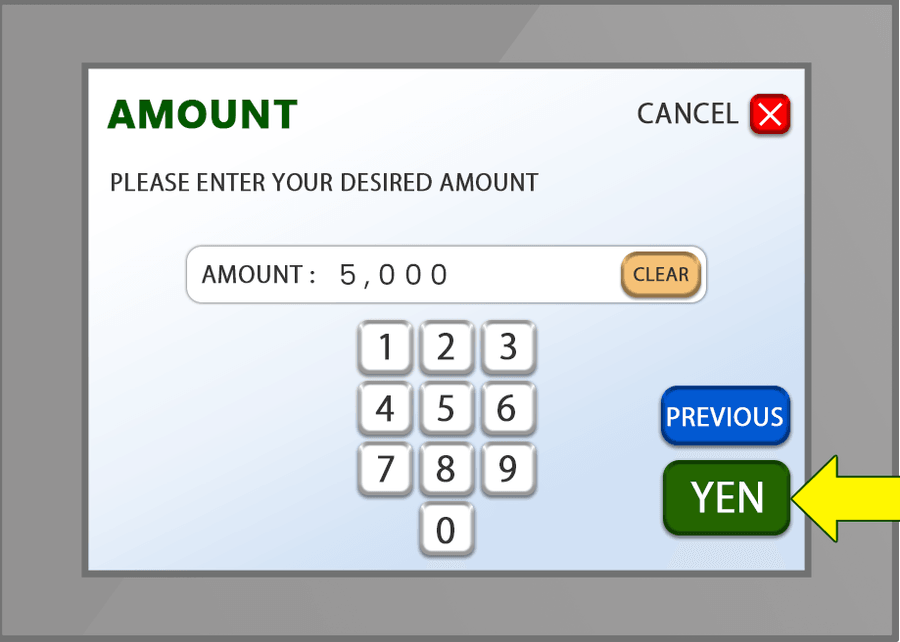
Step 10: Select “Enter”
Continue with the transaction.
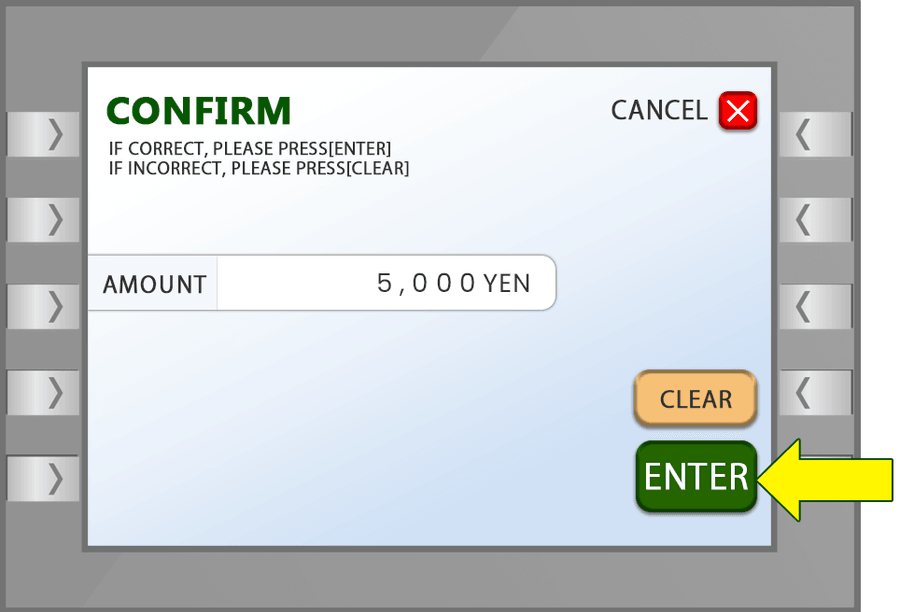
Step 11: Check the Details
Review the information carefully and select “Enter.”
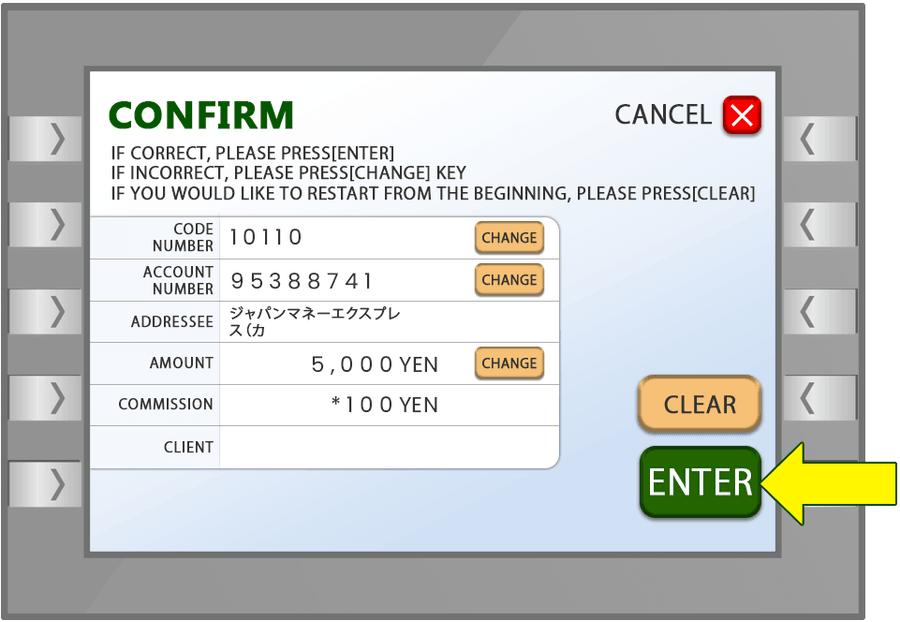
Step 12: Select “Yes”
Confirm the transaction.
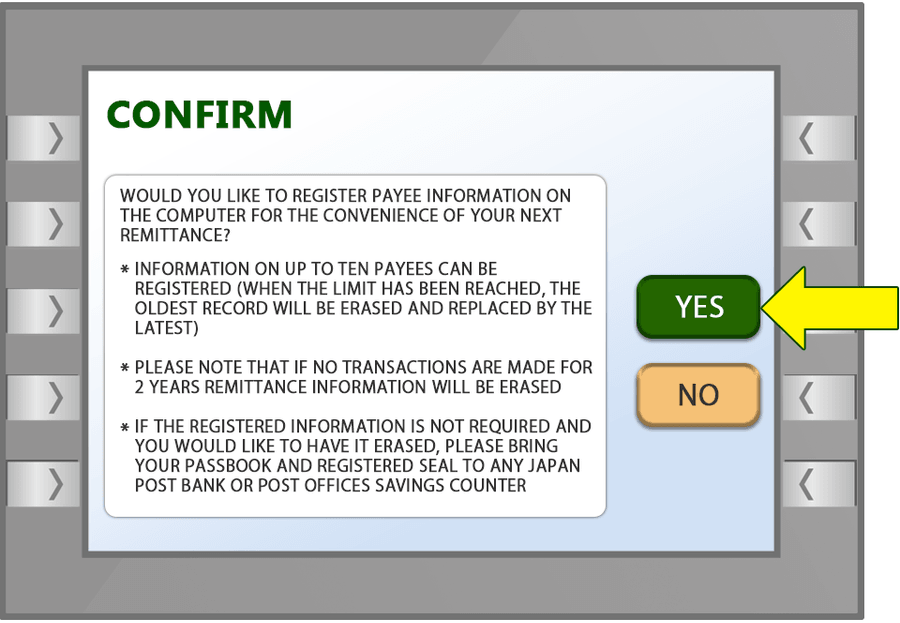
Step 13: Collect Your Passbook or Card
Take your passbook or card from the ATM. Your transfer is now complete.
- 04
Lawson card deposit
The JME Lawson Card is a convenient way for customers in Japan to deposit cash for their international remittances. It allows you to make deposits at participating Lawson ATMs without needing to visit a JME branch.
The card is designed to make the remittance process simple, convenient, and accessible. Once you receive your Lawson Card, you can use it whenever you need to deposit money for your JME transfer. It is especially useful for customers who prefer to make deposits at a Lawson location close to their home or workplace with nominal charges. We reimburse those charges in form of JME points to their mobile app which they can use it when remitting the money.
With the Lawson Card, you can deposit your money at your convenience and continue with your remittance without unnecessary waiting. Your convenience is our priority.
Each screen below is what you will see at the ATM, with the button to press marked:
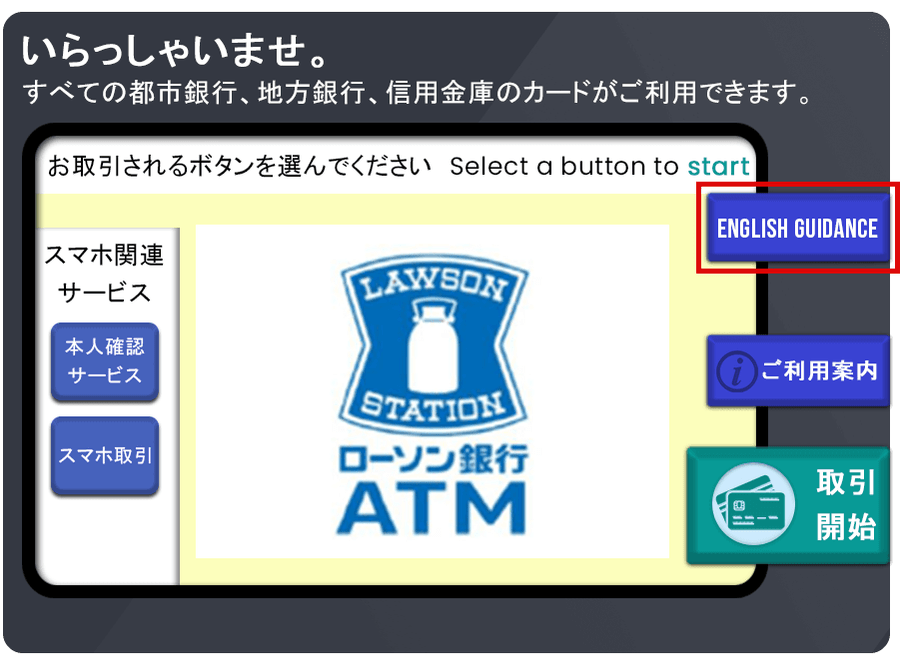
Step 1: Select “English Guidance”
Choose English on the ATM screen.
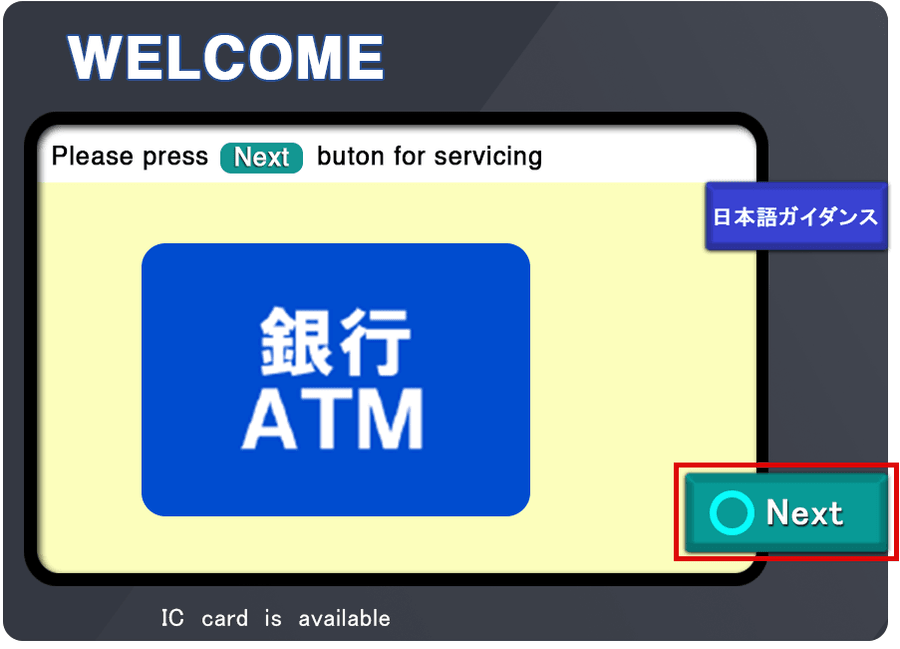
Step 2: Select “Next”
Continue to the next screen.
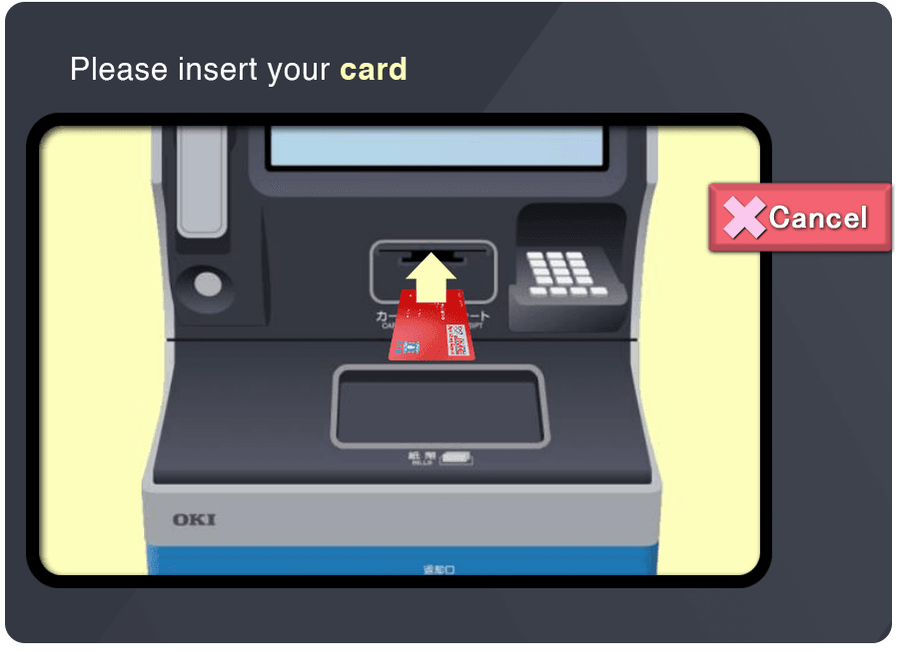
Step 3: Insert your Lawson Card
Insert your JME Lawson Card into the ATM.
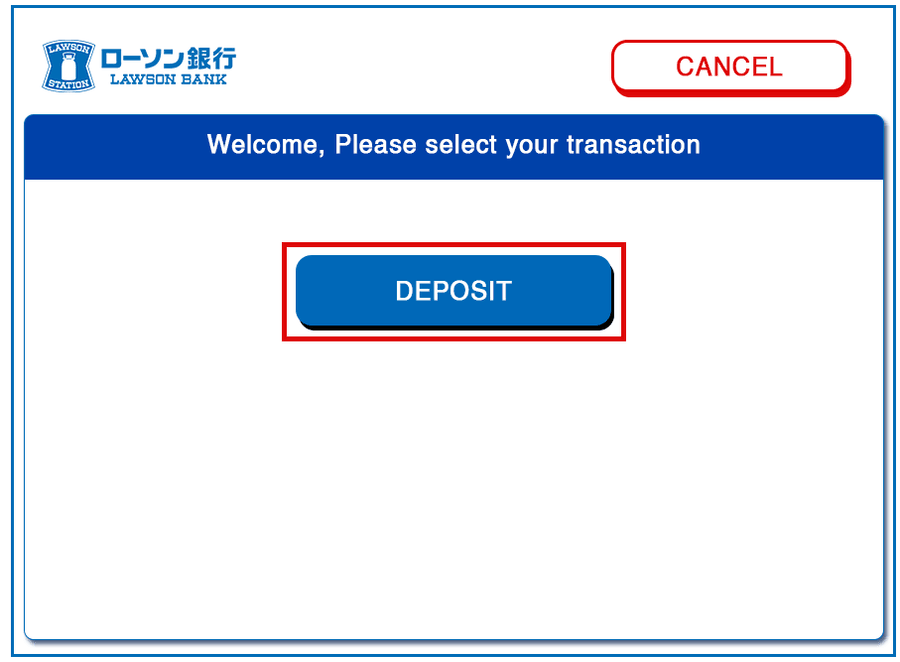
Step 4: Select “Deposit”
Choose the deposit option on the screen.
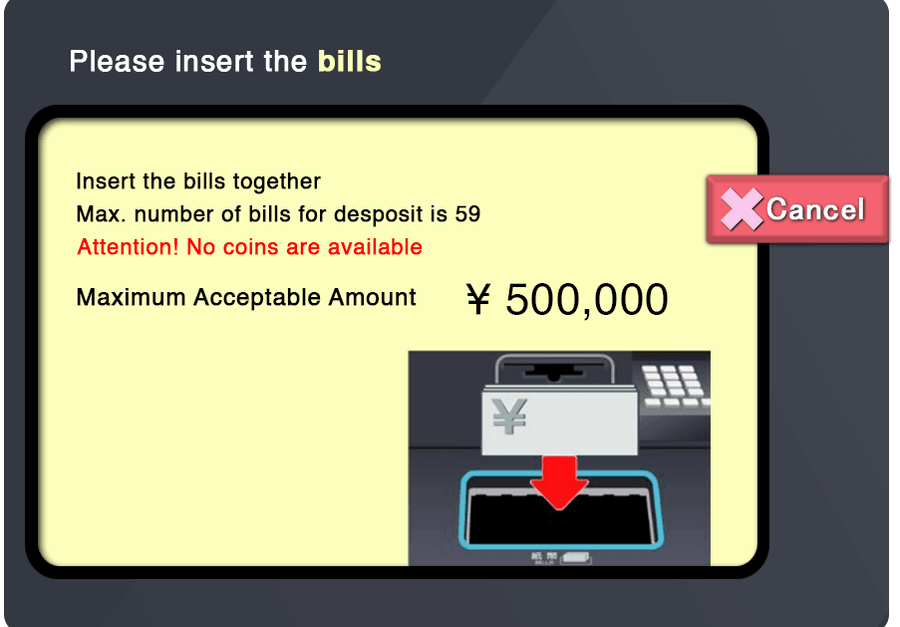
Step 5: Insert your cash
Place the amount you want to deposit into the ATM.
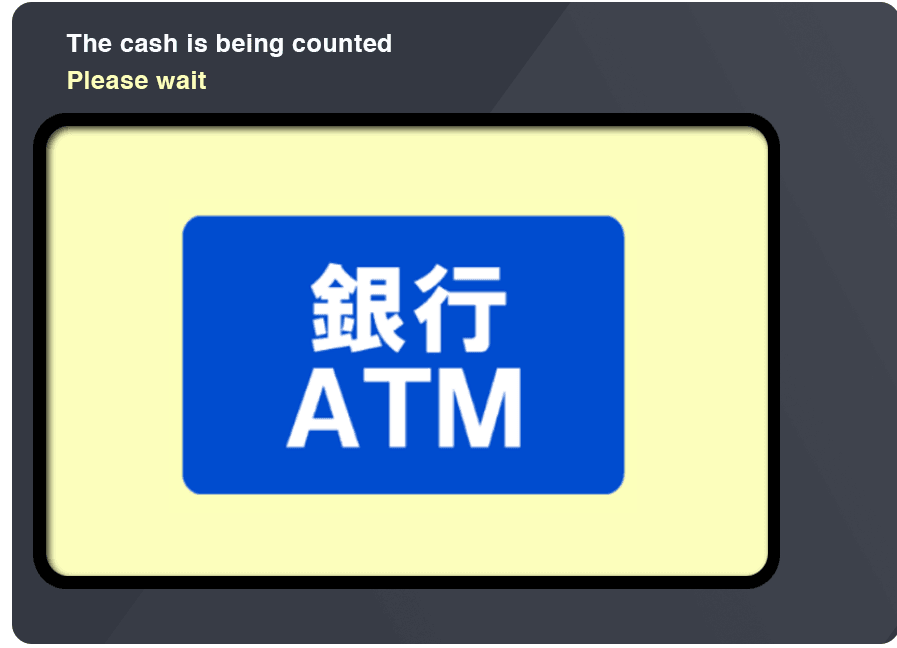
Step 6: Wait for the ATM to count the money
The ATM will check and process your cash.
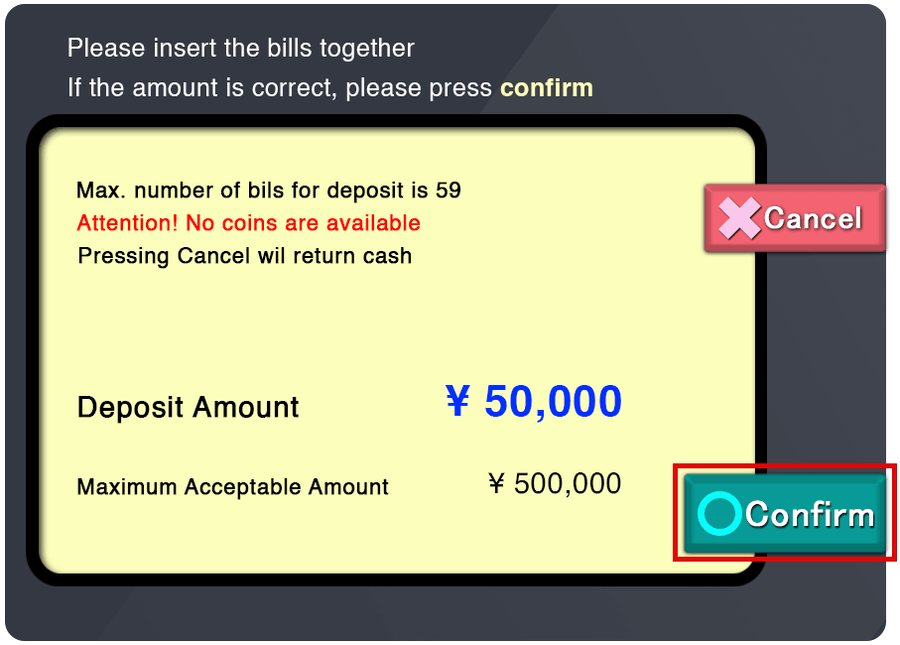
Step 7: Confirm the amount
Check that the displayed amount is correct and select “Confirm.”
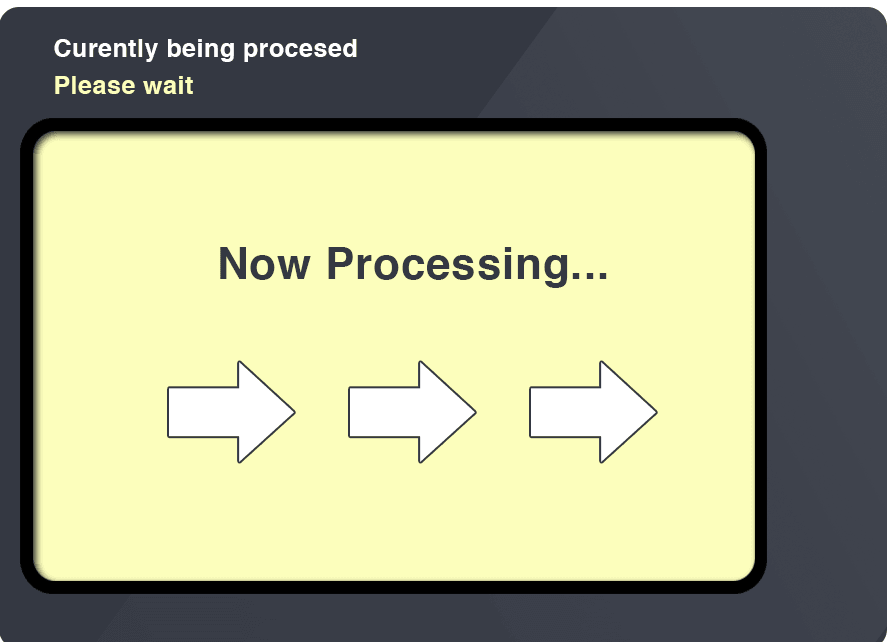
Step 8: Wait for processing
The ATM will process your transaction.
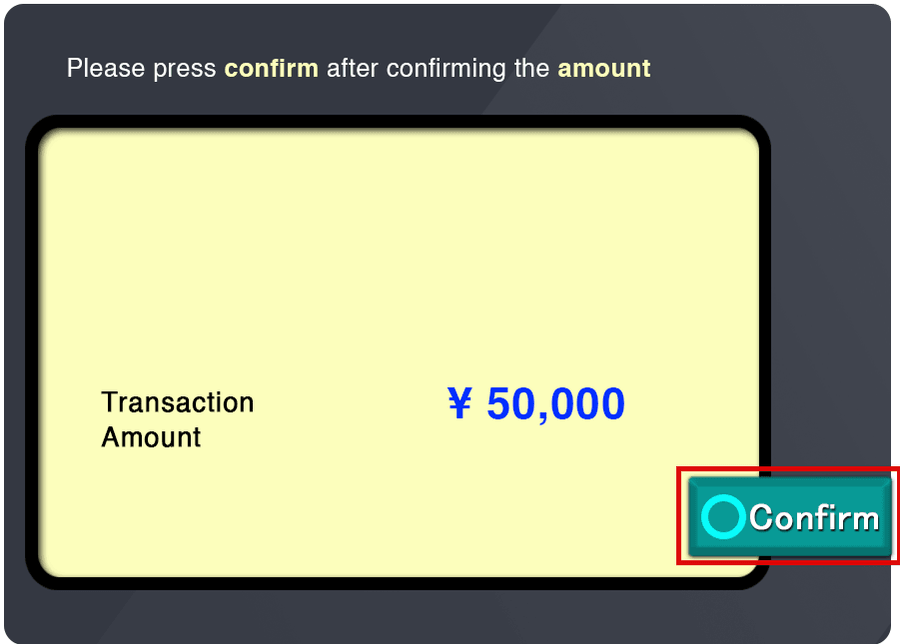
Step 9: Confirm the transaction
Follow the instructions on the screen and confirm.
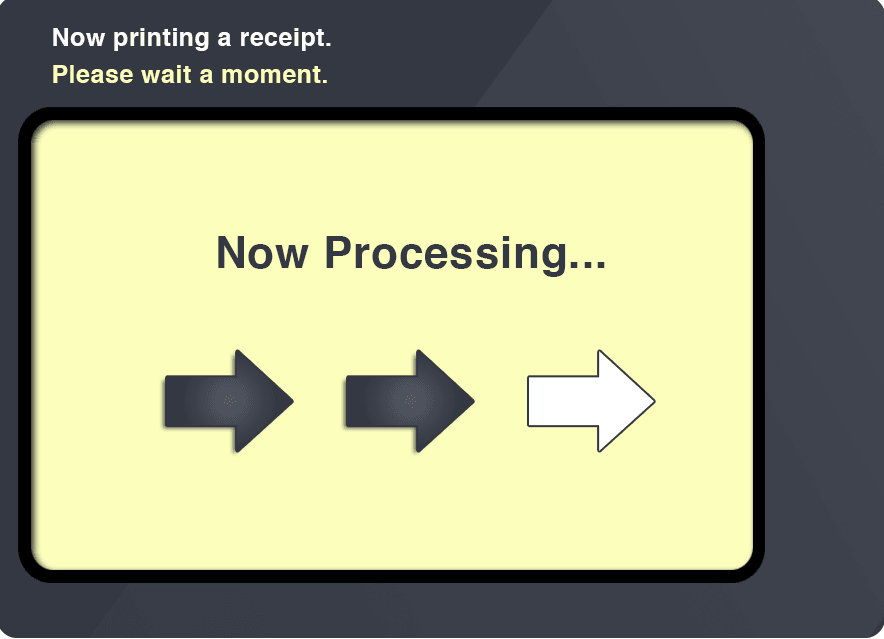
Step 10: Wait for completion
Please wait until the transaction is fully completed.
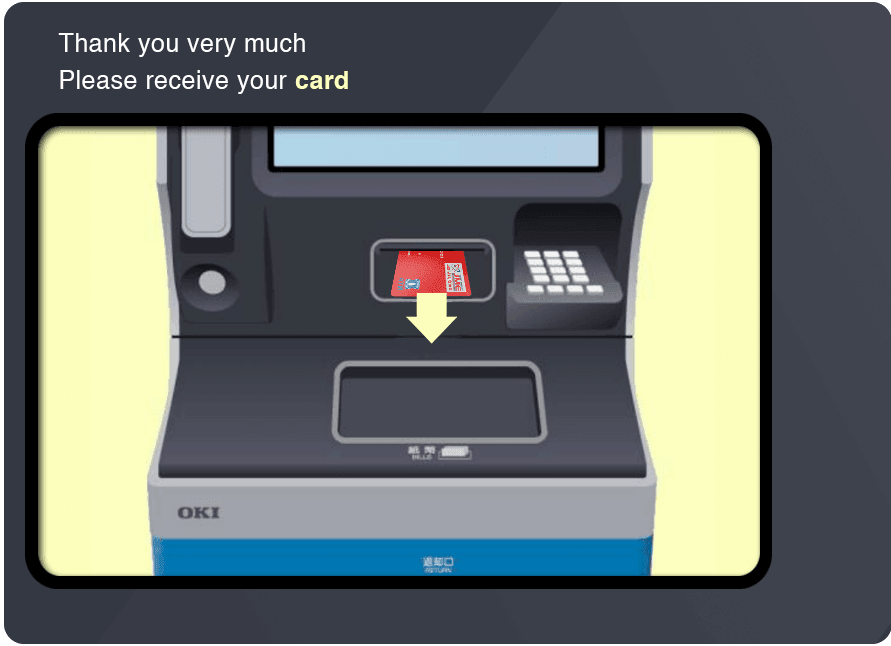
Step 11: Take your Lawson Card
Remember to collect your card from the ATM.
Step 12: Deposit Complete
Your cash deposit is now complete.


Ready to send money home?
Download the Japan Remit app and complete your first transfer today.